

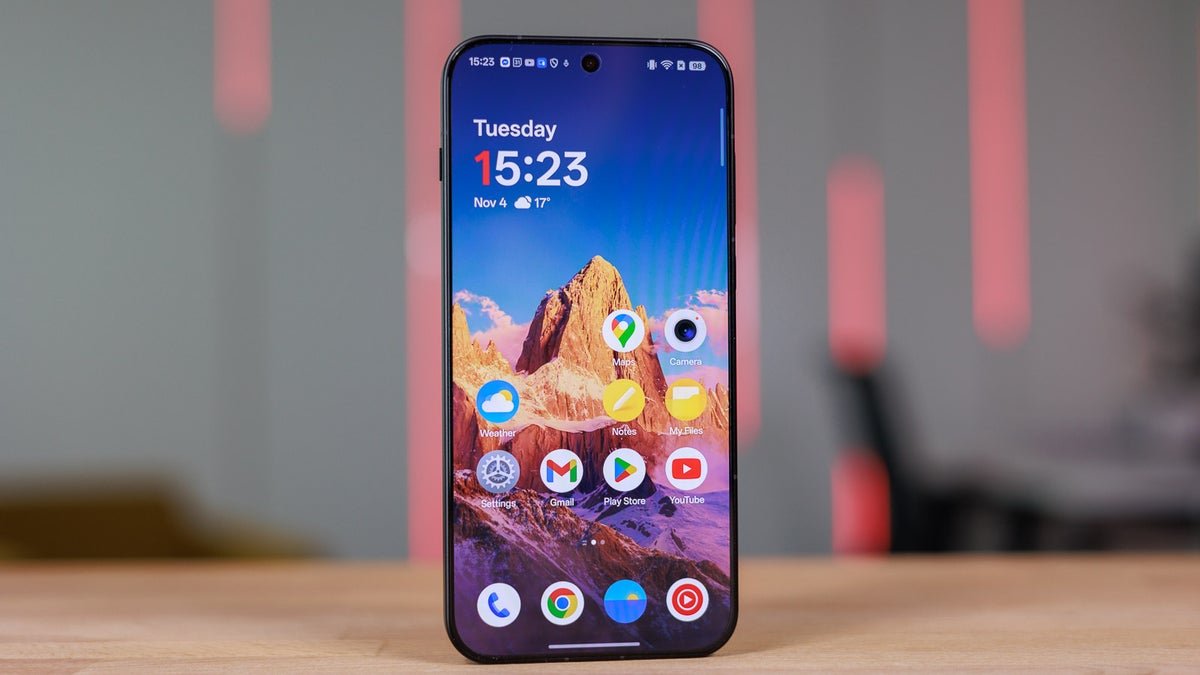
OnePlus 15 gets AirDrop compatibility
If you have a friend with an iPhone, you must be familiar with the struggle of sharing and receiving files from them. You have to rely on different workarounds like sending the file through WhatsApp, using the very slow Bluetooth method, uploading the files to cloud platforms like Google Drive and sharing the folder link, or using dedicated file-sharing applications like LocalSend. I, personally, use the WhatsApp method whenever I want to send images without losing their quality.
How to use OnePlus 15 AirDrop compatibility to send and receive files
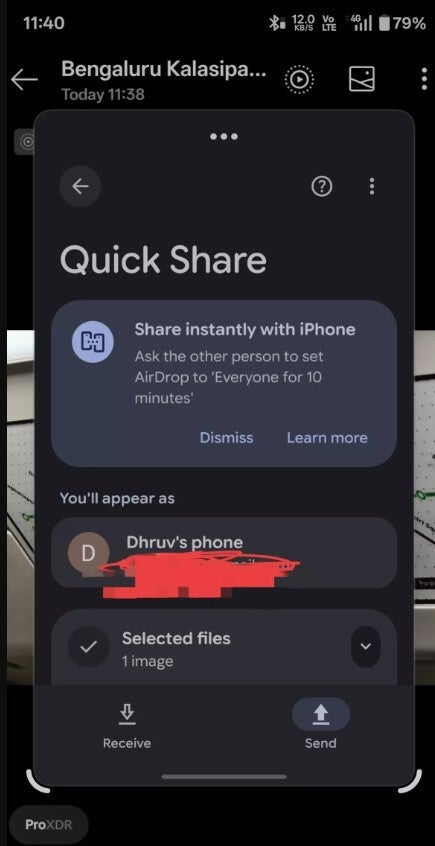
AirDrop support on OnePlus 15. | Image by OnePlus Community
The process to transfer files between OnePlus 15 and iPhone is pretty simple. For instance, if you want to send an image from your OnePlus phone to an iPhone, then you first need to make sure that AirDrop is enabled on the iPhone, and it is set to “Everyone for 10 Minutes.”
On your OnePlus device, open the Quick Share app and hit the Send button. You will see the iPhone name listed under the “Send to nearby devices” section. Tap the “Select” button to choose the file that you want to transfer, and then tap on the iPhone name to begin the transfer process.
Similarly, you can move files from the iPhone to the OnePlus 15. Select the image that you want to transfer from the gallery, tap the Share button, and choose AirDrop. Then, select your OnePlus 15 from the list of available devices.
All Android phones should get a feature like this
I really think such a useful capability should not be available only on certain devices. Instead, it should be introduced on all Android phones. That said, there is no certainty on when or even if previous OnePlus models like the OnePlus 13 will get this important update.
However, the good news is that the Mountain View giant announced during its event that there’s a workaround by which all Android phones can directly transfer files to an Apple device. You simply need to generate a QR code using the Quick Share app on your Android phone and then scan it with the iPhone on which you want to receive the file. The data will now be transferred via the cloud.
