

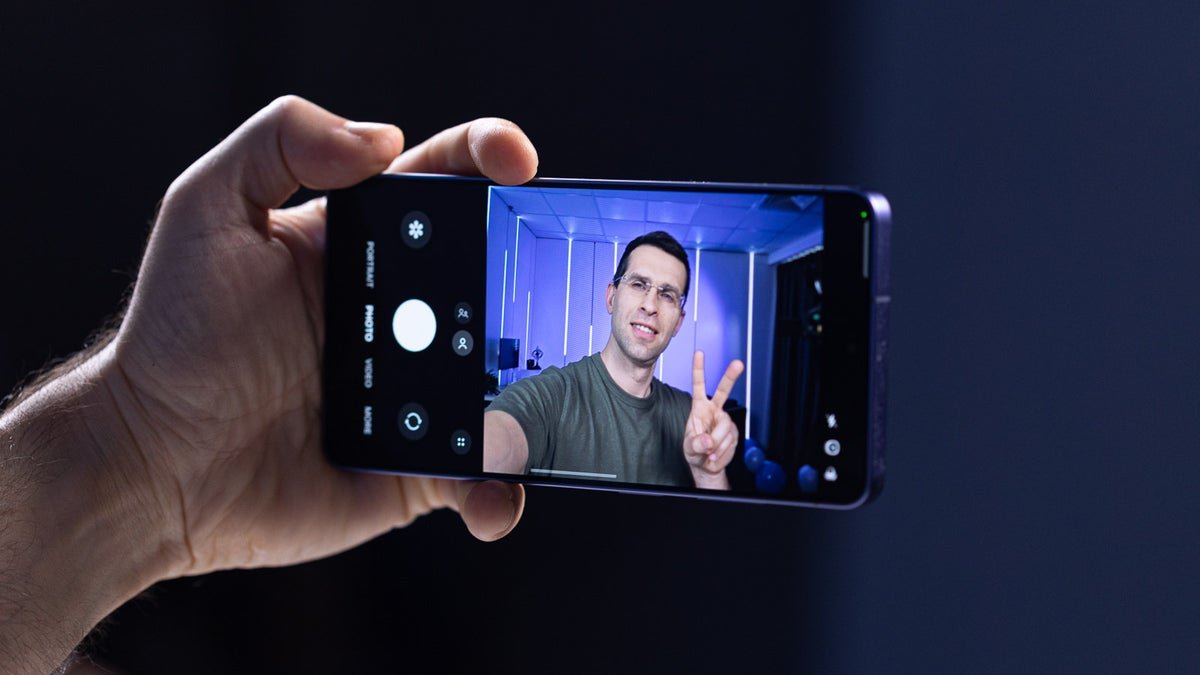
But look closer, and you will see many smaller changes that together combine for one of the bigger selfie camera upgrades in a while.
First, Samsung introduces a new 23mm lens. This wider perspective (it used a 25mm lens previously) makes it much easier to fit more of the background or a larger group of people. At 23mm, Samsung has found a great middle ground — the lens is not too wide to introduce big distortions, yet wide enough to fit more people.
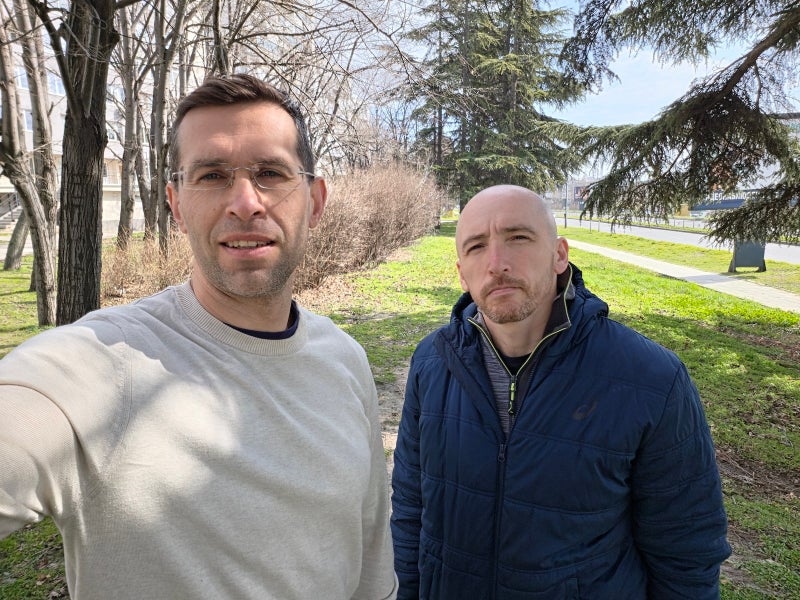
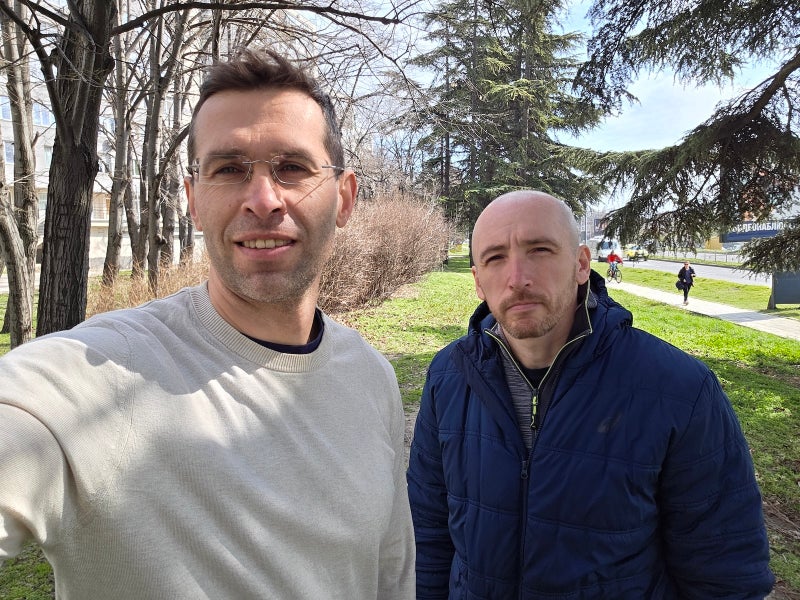
The 23mm selfie camera is a bit wider than before (S26 Ultra on the left, S25 Ultra on the right) | Images by PhoneArena
Essential settings for selfies
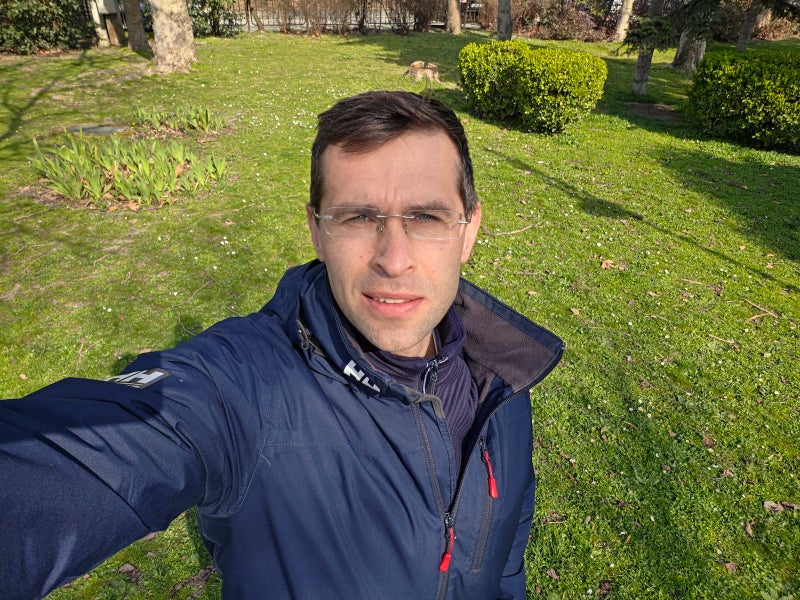
Warm (left) vs Natural (right) color tones | Images by PhoneArena
- Clean up that lens before shooting.
- Look at the camera, not the screen.
- For posing and composition, hold the phone slightly above eye level and tilt your chin down just a fraction. This uses the S26 Ultra’s wide-angle lens to slim the jawline naturally.
Pro Tip: Download the Camera Assistant app from the Galaxy Store to unlock some superpowers! In the app, toggle Photo Softening to “Off” or “Medium.” This is the little secret that will keep eyelashes and eyebrows looking sharp instead of blurry.
Screenshots by PhoneArena
On the Galaxy, you can also use voice commands to take a selfie. You can simply say “Cheese”, “Smile”, “Capture” to take a photo when your other hand is full.
Quick Tip: Go to Camera Settings > Shooting methods (under the General tab) and enable “Show palm”. Then, just hold your hand up to the camera and it will start a 2-second timer.
I also love taking multiple pictures while on a timer. While still in camera settings, scroll all the way down to Camera Assistant and go to “Timer multi-photo options”. Here, I select multiple pictures with a small interval between them. This is perfect for couples on a vacation or just a group of friends doing fun stuff.
It’s very easy to take multiple selfies on a timer with the S26 Ultra | Images by PhoneArena
Also, don’t forget that you can shoot RAW selfies. I recommend using the Expert RAW mode for that if you want to keep the HDR look, or go to Pro mode if you want a RAW file with no HDR effect at all.
AI Style your selfies
Samsung’s new AI styles have been my little obsession over these past few weeks testing the phone. They are a huge improvement, even when compared to what we had on the previous S25 Ultra.The main difference is that the AI styles stick very close to the original, so even when styled, you, your friends and your pets still look like… well, yourselves!
The feature is baked right in the gallery app and makes those selfies look a lot more fun:
AI Styles applied to a selfie
Generative edits and AI photo assist
Samsung’s AI suite is also great for getting rid of photo bombers. Say, you have the perfect selfie but there’s a random person in the background. Open the image in the gallery, tap the AI button and just select that person to remove them. Generative edit will take care of the rest.
AI eraser works brilliantly on the S26 Ultra | Image by PhoneArena
You can literally just type what you want to see in a photo. For example, you can type “change my jacket to a T-shirt,” or “turn this morning into a night”.
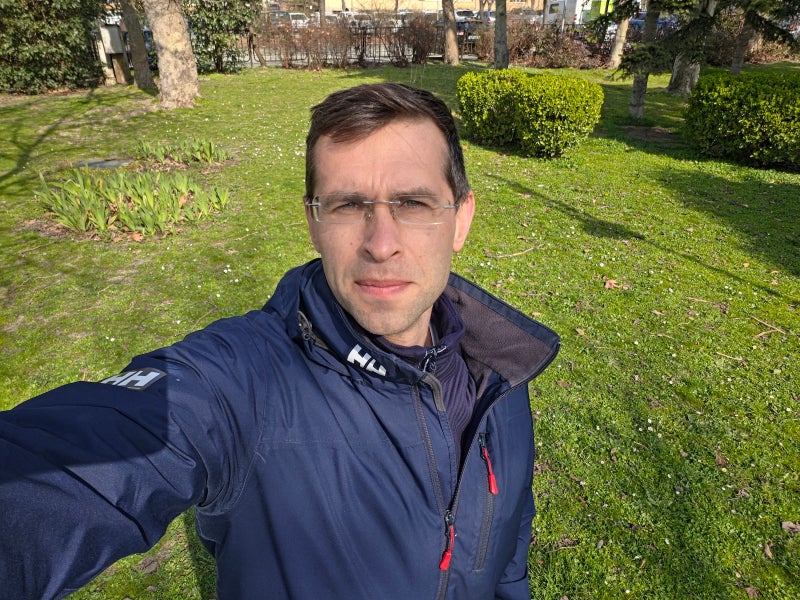
Generative edit can make big and very convincing changes to your photos (Here, I asked the phone to change my jacket to a T-shirt) | Image by PhoneArena
For the first time, you also have a step-by-step edit history, so you can go back and tweak or undo specific editing steps without starting over.
[1] Galaxy AI – Samsung account login is required for certain AI features. Galaxy AI features are provided for free. Future releases may include additional advanced features that are offered as part of a paid subscription plan. Different terms may apply for AI features provided by third parties.
[2] Galaxy AI‘s Photo Assist – Requires network connection and Samsung account login. A visible watermark is overlaid on the saved image to indicate it was generated by Galaxy AI. Accuracy of output not guaranteed.
