

If you’ve ever checked your website speed and seen poor results, large image files are often the reason. In 2026, optimizing images is no longer just a nice extra — it’s an important part of building a fast, SEO-friendly website.
Google’s Core Web Vitals still play a major role in search rankings, and one of the key metrics, Largest Contentful Paint (LCP), is heavily affected by image size. Just one large, uncompressed hero image can slow your page beyond Google’s recommended 2.5-second limit. That can hurt your rankings and make visitors leave before the page fully loads.
The good news is that fixing this is easier than ever. You don’t need expensive software or advanced technical skills. Today’s free online image compression tools are much more powerful than they used to be. Many support modern formats like WebP and AVIF, allow batch compression, and even process images directly in your browser so your files stay private on your device.
In this guide, we’ll explore the 7 best free online image compression tools in 2026, explain what each tool is best for, and help you choose the right one for your needs.
Before diving into the tools, it helps to understand what separates a genuinely useful compressor from one that just resizes your image and calls it a day.
Compression Quality
A good tool should meaningfully reduce file size — ideally 50–80% — without introducing visible artifacts or muddying fine details like text and edges. Always check the output before publishing, especially for images with sharp text or fine details.
Lossless vs. Lossy Compression
These are two different approaches to reducing file size, and knowing the difference helps you pick the right setting.
● Lossless compression reduces file size without removing any image data. The image looks exactly the same after compression. This is ideal for logos, icons, and screenshots where sharpness matters.
● Lossy compression removes some image data to achieve much smaller file sizes. The difference is usually invisible at normal viewing sizes. This works well for photographs and large background images.
Supported Formats
At minimum, a good tool should support JPG and PNG. In 2026, WebP support is standard, and AVIF — which compresses even better than WebP — is increasingly available. The more formats a tool supports, the more flexible it is across different projects.
Batch Processing
If you work with multiple images regularly, batch processing saves a lot of time. Instead of compressing one image at a time, you can upload several at once and download them all together — often as a ZIP file.
Privacy Considerations
Some tools upload your images to their servers for processing. Others compress images directly in your browser, meaning your files never leave your device. If you work with sensitive or private images, browser-based tools are the safer choice.
Ease of Use
The best tools are drag-and-drop, show results quickly, and do not require you to create an account. A simple interface means less time figuring out the tool and more time getting work done.
1. 99Tools
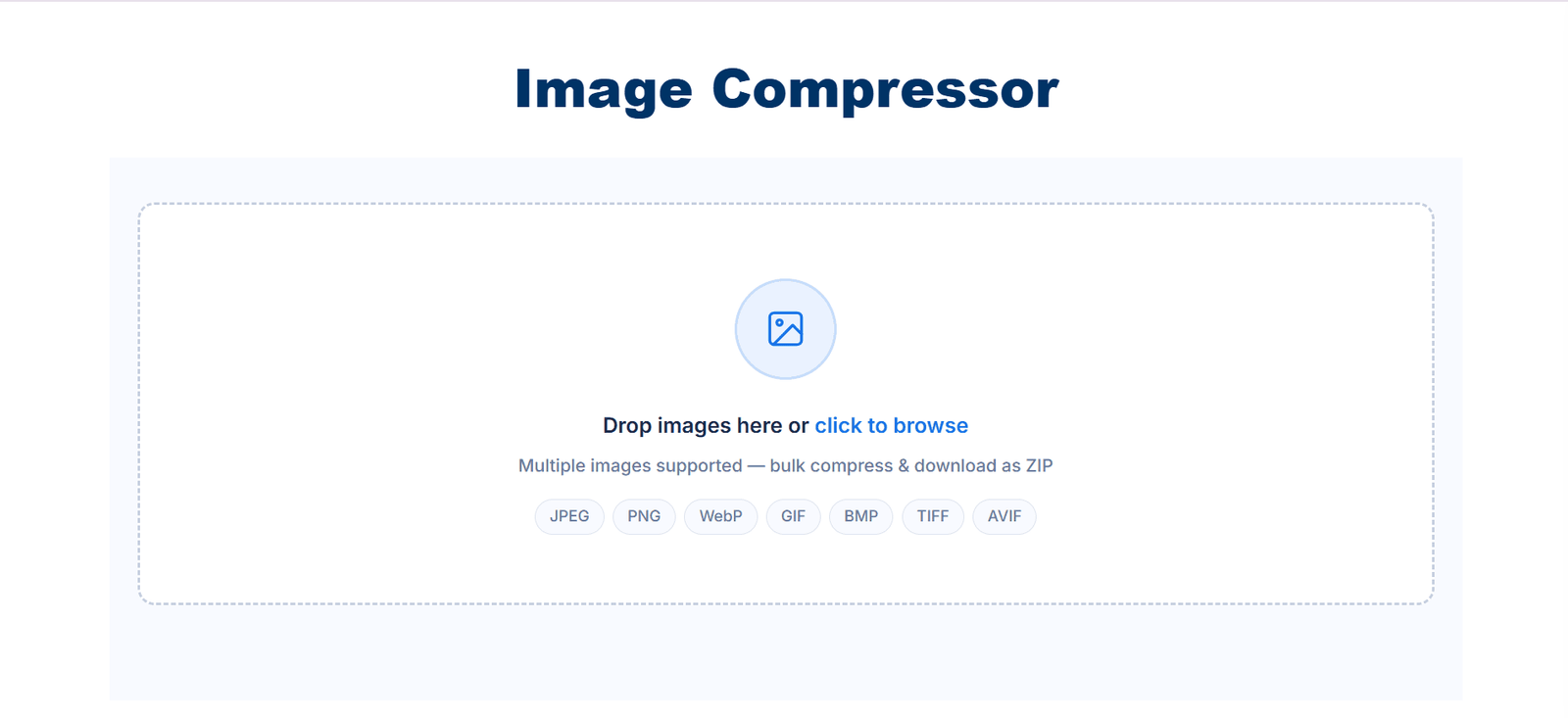
99Tools Image Compressor is a simple online tool that lets you compress images without installing any software. You can drag and drop your images into the tool, compress them, and download the results — either one by one or as a ZIP file when using bulk mode.
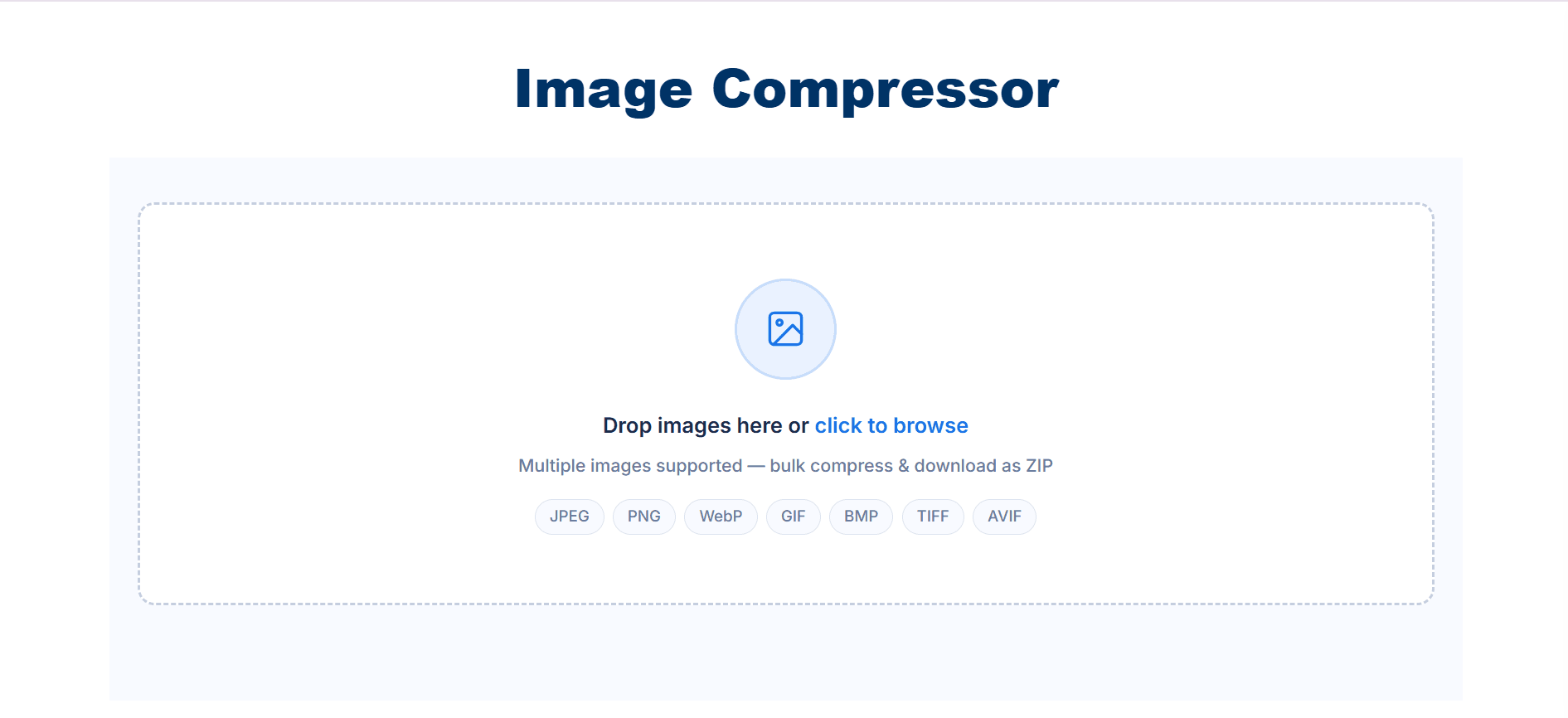
One thing worth noting is its wide format support. It works with JPEG, PNG, WebP, GIF, BMP, TIFF, and AVIF — which covers most image types you are likely to encounter day to day. This makes it a flexible choice for people who work with different kinds of images regularly.
The tool also supports bulk compression, so you can upload and process multiple images at once. This saves time for anyone who regularly publishes image-heavy content.
Supported formats: JPEG, PNG, WebP, GIF, BMP, TIFF, AVIF.
Best for: Bloggers, website owners, and content creators who want a straightforward tool that handles many file types and supports bulk compression.
Main features:
● Bulk image compression with ZIP download
● Supports 7 formats including AVIF and TIFF
● Simple drag-and-drop interface
● No account or sign-up required
● Instant download after compression
Pros:
● Wide format support including modern formats like AVIF
● Bulk compression saves time when working with many images
● Easy to use — no technical knowledge needed
● Good compression quality
Cons:
● No side-by-side quality comparison view
● No Cloud storage integration
Ease of use: High — suitable for beginners and non-technical users.
2. TinyPNG
TinyPNG is a well-known image compression tool that focuses on PNG and JPEG files. It reduces file size by lowering the number of colors in an image in a way that is hard to notice with the human eye. WebP is also supported.
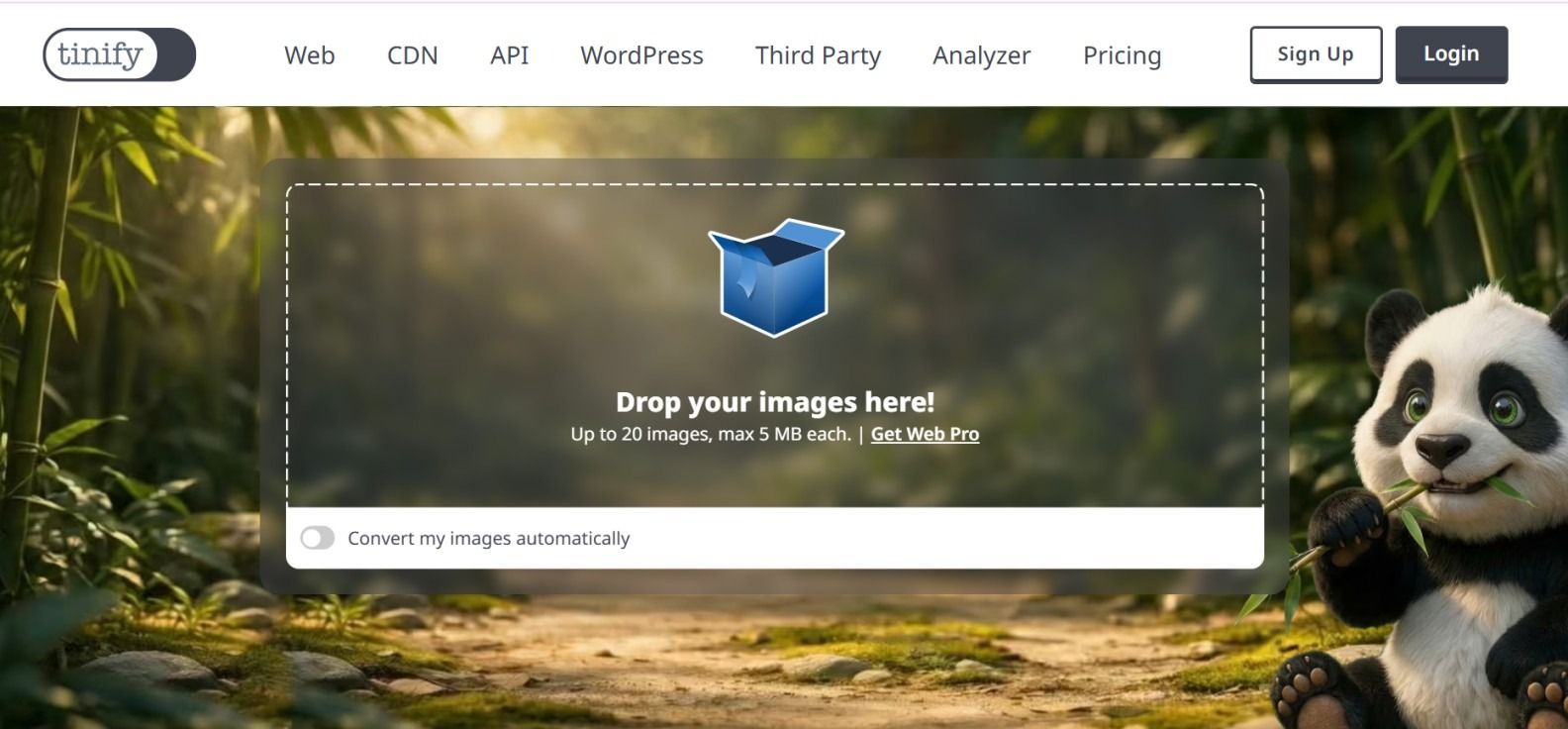
It is widely used by designers and developers. A WordPress plugin and Photoshop plugin are available for those who want to compress images directly inside tools they already use.
Supported formats: PNG, JPG, WebP.
Best for: Designers and web developers who work mainly with PNG files.
Main features:
● Lossy compression for PNG, JPEG, and WebP
● WordPress and Photoshop plugins available
● API for developers who want to automate compression
Pros:
● Good compression results, especially for PNG files
● Plugins make it easy to use inside existing workflows
● Developer API for automation
Cons:
● Free plan allows up to 20 images per batch
● Maximum file size of 5MB per image on free plan
● No AVIF support
Batch compression: Yes, up to 20 files on the free plan.
Privacy: Images are uploaded to TinyPNG’s servers and deleted after processing.
3. iLoveIMG
iLoveIMG is an online image tool that does more than just compress images. It also lets you resize, crop, convert, and add watermarks to images — all in one place. This can be useful if you regularly need to do several things to an image before publishing it.
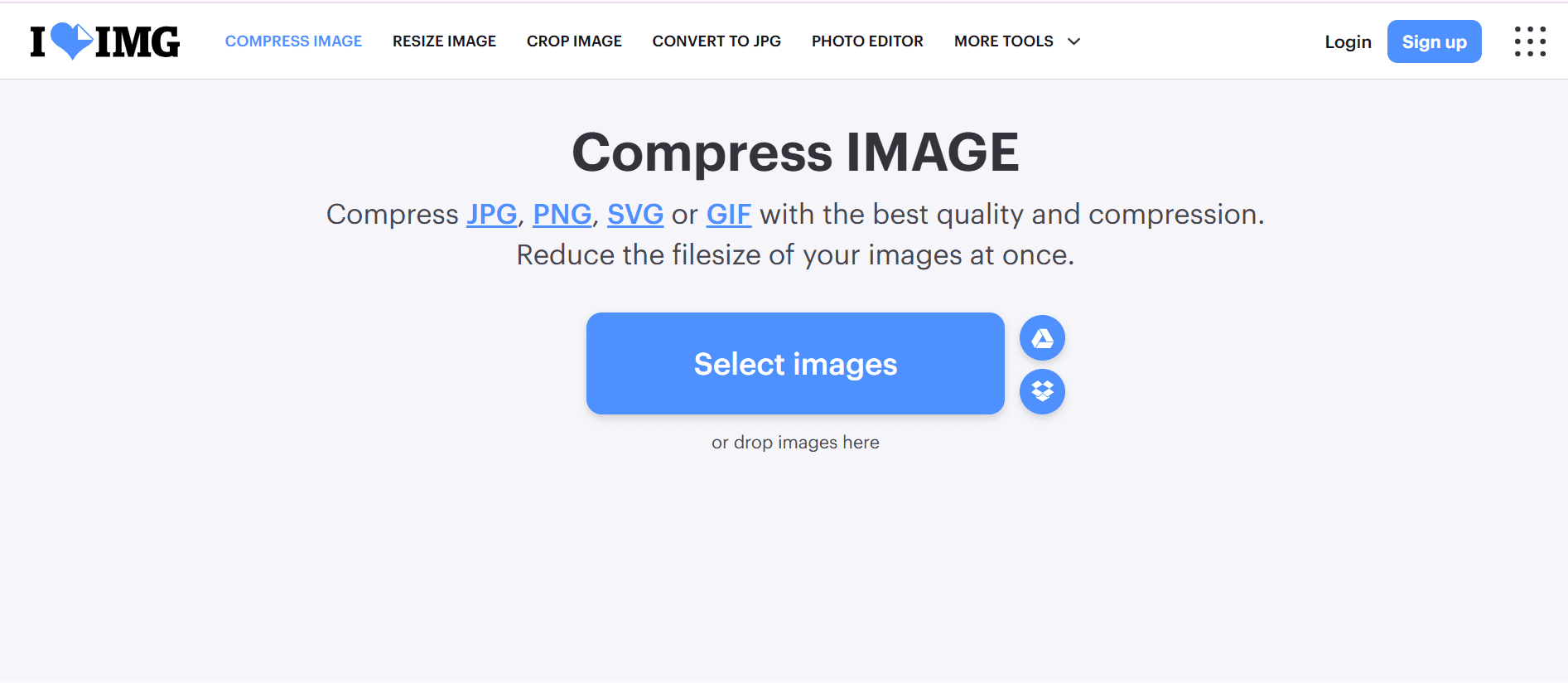
The compression feature supports batch uploads, and the tool connects to Google Drive and Dropbox, so you can import and export files directly from cloud storage.
Supported formats: JPG, PNG, GIF, WebP.
Best for: Content teams and eCommerce store owners who process large numbers of images and need more than just compression.
Main features:
● Batch image compression
● Extra tools: resize, crop, convert, watermark, rotate
● Google Drive and Dropbox integration
● Works on mobile and desktop browsers
Pros:
● Handles multiple image tasks in one place
● Batch processing available on the free plan
● Cloud storage integration is convenient for teams
Cons:
● Images are uploaded to iLoveIMG’s servers for processing
● Free plan has limits on file size and number of files
● Less compression control compared to tools like Squoosh
Batch compression: Yes.
Privacy: Server-based — files are deleted after a set period.
4. Compressor.io
Compressor.io is a focused tool that does one thing: compress images. It supports both lossless and lossy compression modes, and shows you the before and after file sizes clearly so you know exactly how much space you saved.
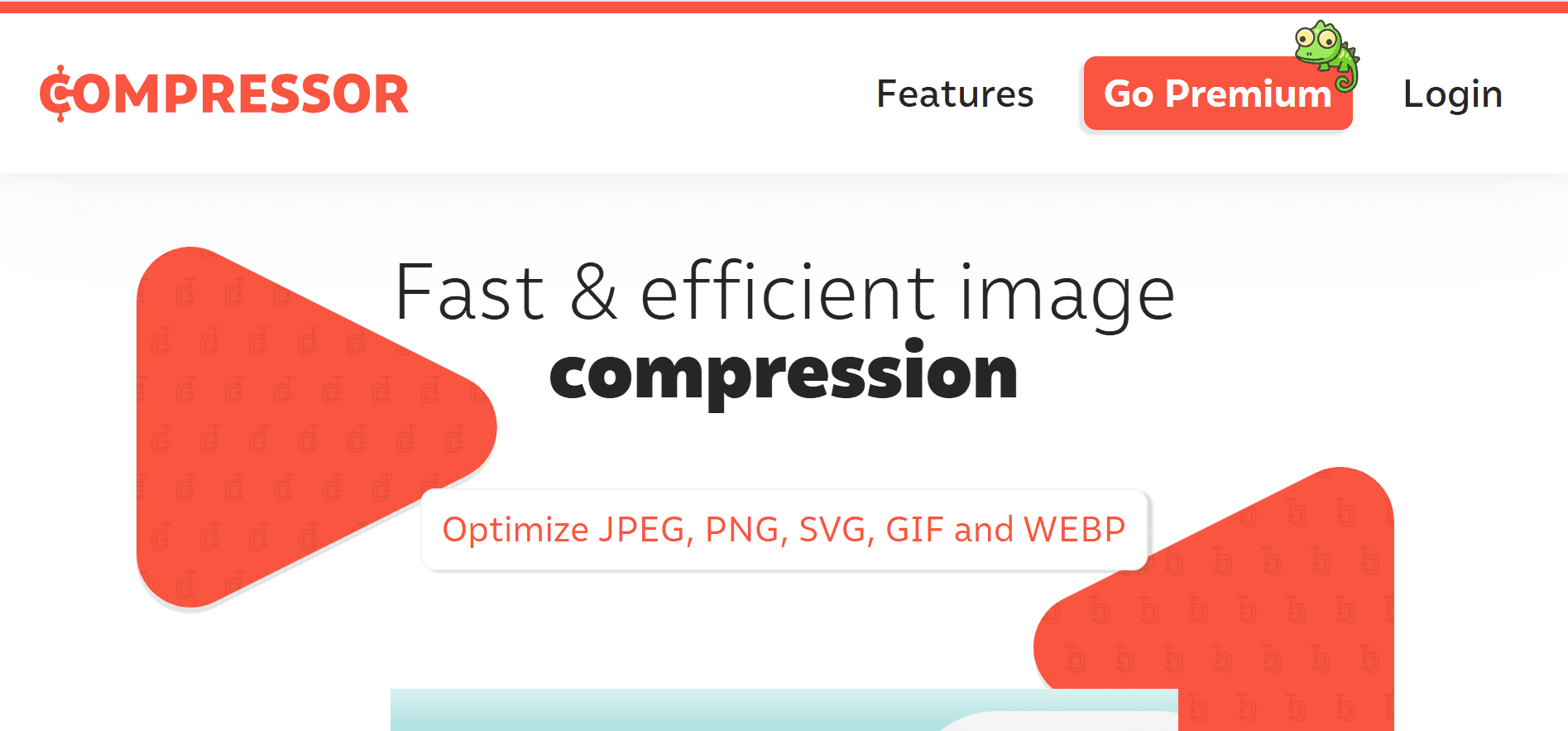
One thing that sets it apart from most other tools is support for SVG files, which many compression tools do not handle. This makes it a practical option for designers who work with vector graphics.
Supported formats: JPEG, PNG, GIF, SVG.
Best for: Designers who work with SVG files and need a clean, no-distraction compression tool.
Main features:
● Both lossless and lossy compression modes
● SVG file support
● Clear before/after file size display
● No account needed for basic use
Pros:
● One of the few tools that compresses SVG files
● Simple and easy to use
● Works in both lossless and lossy modes
Cons:
● Free plan allows only one image at a time
● No WebP or AVIF output format
● Batch compression is a paid feature
Batch compression: Paid plan only.
Privacy: Files are uploaded to servers and deleted promptly after processing.
5. Kraken.io
Kraken.io is an image optimization tool with both a web interface and integration options for WordPress and Magento. It supports lossy and lossless compression, and can also convert images to WebP format.
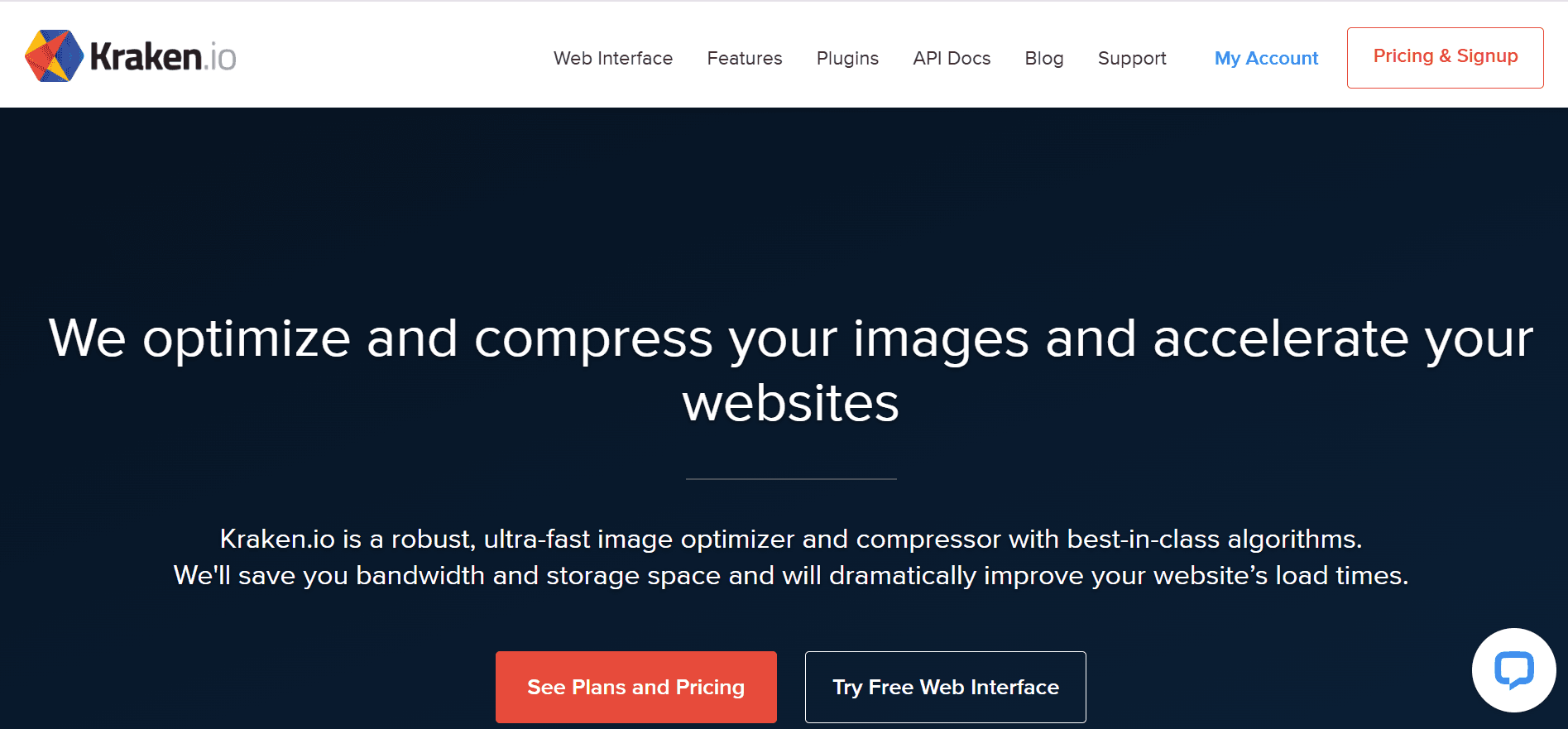
The free plan has a 1MB file size limit per image, which may not be enough for larger files. However, the tool does allow you to remove EXIF data from photos — the hidden metadata that cameras and phones attach to images — which reduces file size and removes location or device information.
Supported formats: JPEG, PNG, GIF, SVG, WebP.
Best for: WordPress and Magento users who want compression built into their publishing workflow.
Main features:
● Lossy and lossless compression
● WebP conversion
● WordPress and Magento plugins
● EXIF data removal
● API for developers
Pros:
● CMS plugins make compression part of the upload process
● EXIF stripping reduces file size and removes personal metadata
● Good compression quality
Cons:
● Free plan is limited to 1MB per file
● Bulk compression on the web interface requires a paid plan
● The interface looks outdated compared to newer tools
Batch compression: API supports batch; web interface requires a paid plan.
Privacy: Server-based; EXIF data can be removed on request.
6. FreeConvert Image Compressor
FreeConvert is a file conversion platform that includes an image compressor. It supports a wide range of formats — including some less common ones like TIFF and BMP — and allows you to adjust the compression level manually using a percentage slider.
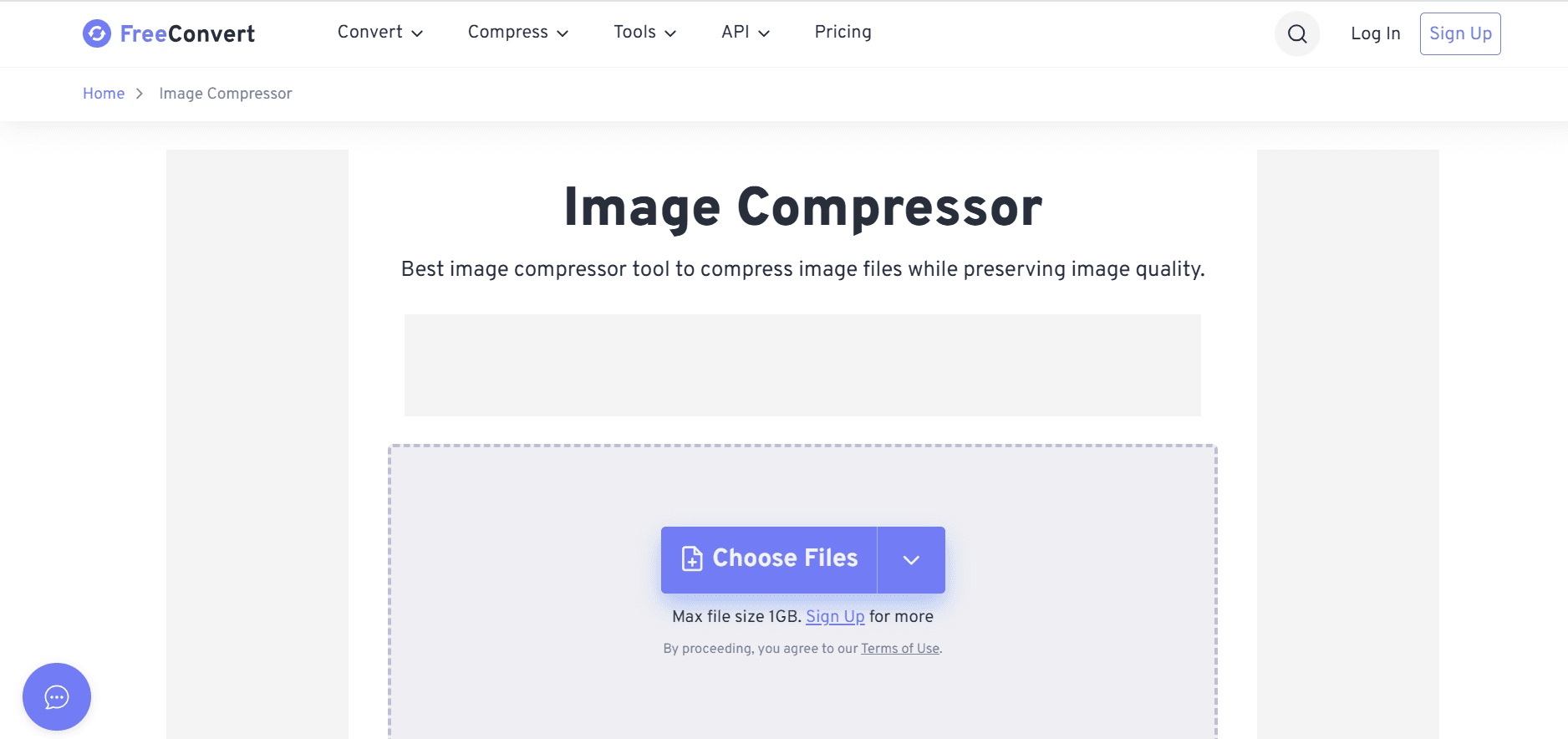
The free plan supports files up to 1GB, which is larger than most other free tools allow. This makes it a useful option when you need to compress a very large image file.
Supported formats: JPG, PNG, GIF, WebP, SVG, BMP, TIFF, and more.
Best for: Users who need to compress large files or work with formats that other tools do not support.
Main features:
● Manual quality slider for compression control
● Supports files up to 1GB on the free plan
● Wide format support including TIFF and BMP
● Google Drive and Dropbox integration
Pros:
● Very large file size limit on the free plan
● Manual compression control gives more flexibility
● Supports many file formats
Cons:
● Large files can take longer to process
● Ads are shown on the free plan
● Files are uploaded to servers — not processed locally
Batch compression: Yes, with some limits on the free plan.
Privacy: Server-based processing.
7. ImageCompressor.com
ImageCompressor.com is a simple online tool focused on compressing JPEG and PNG images quickly. It allows up to 20 images per batch and handles files up to 10MB each. There is no sign-up required and the process is straightforward — upload, compress, download.
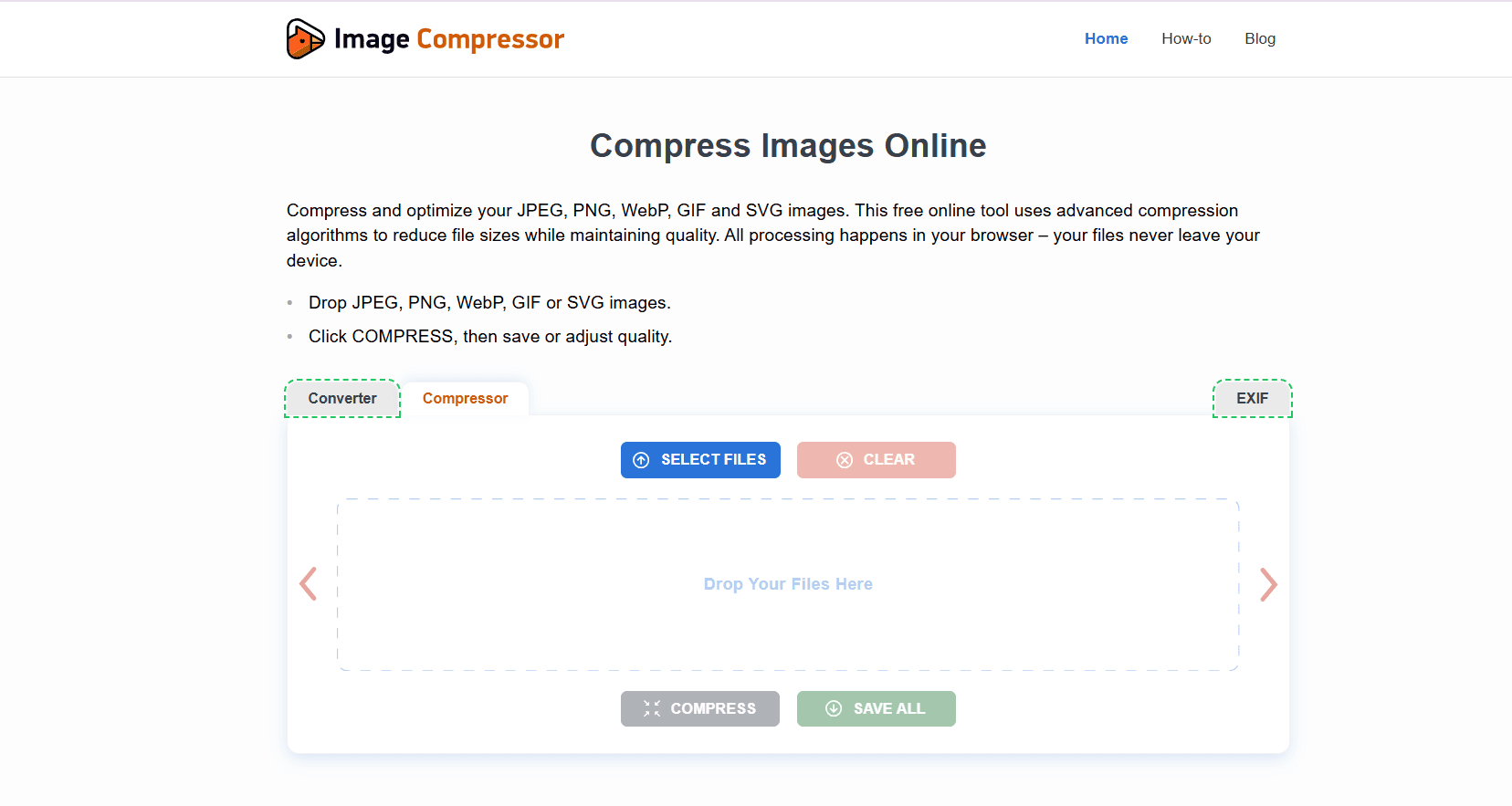
It does not offer advanced settings or format conversion, but for users who only work with standard photo formats and want a fast, no-fuss experience, it gets the job done.
Supported formats: JPG, PNG.
Best for: Bloggers and content publishers who regularly upload JPEG or PNG images and want a quick batch option.
Main features:
● Batch compression (up to 20 images at once)
● Supports files up to 10MB each
● No account or sign-up needed
● Instant download after compression
Pros:
● Good batch limit for a free tool
● Simple and quick to use
● No registration required
Cons:
● Only supports JPG and PNG — no WebP, AVIF, or other formats
● No compression quality control
● No lossless mode
Batch compression: Yes, up to 20 images.
The best tool depends on your workflow, not just the feature list.
Bloggers and Content Creators
If you publish content regularly, speed and simplicity matter most. You need a tool that works quickly without requiring any setup or sign-in. Look for drag-and-drop tools with batch support so you can compress multiple images before uploading them to your CMS.
Web Developers
Developers who work on website performance need more control. A tool that supports AVIF encoding, offers manual quality settings, and shows a side-by-side comparison helps when fine-tuning images for Core Web Vitals. A command-line option is useful for automating compression as part of a build process.
eCommerce Store Owners
Product catalogues often contain hundreds of images. Batch compression is essential. Tools that connect directly to WordPress or Magento — or integrate with cloud storage like Google Drive or Dropbox — reduce manual work and keep the workflow moving.
Agencies and Digital Marketing Teams
Teams working across multiple clients often deal with many different file types. A tool with wide format support and a high file size limit handles the variety without requiring multiple tools for different jobs.
Privacy-Focused Users
Anyone working with confidential product images, client materials, or sensitive visuals should use a browser-based tool that processes images locally. This ensures the files never leave the device and are not stored on any external server.
Best Practices for Compressing Images in 2026
Getting the most from any compression tool also means understanding the broader image optimization landscape.
Choose the Right Format Before Compressing
Format choice matters as much as compression level. WebP produces files roughly 25–34% smaller than JPEG at the same quality. AVIF goes even further — often 50% smaller than JPEG. Most modern browsers support both formats, so switching from JPEG and PNG to WebP or AVIF is one of the most effective changes you can make for page speed.
Do Not Confuse PNG With Quality
PNG is a lossless format, which makes it ideal for logos, icons, and screenshots with text. For photographs, however, PNG files are much larger than they need to be. A JPEG or WebP version of the same photo will usually look just as good at a fraction of the file size.
Compress Before Uploading, Not After
Many content management systems apply some level of compression when you upload an image. This is helpful, but it is not always consistent or high quality. Compressing images yourself before uploading gives you control over the final result.
Use Lazy Loading
Even well-compressed images slow down a page if they all load at once. Lazy loading tells the browser to only load images when the user scrolls close to them. In HTML, you can enable this by adding loading=”lazy” to your image tags.
Serve Responsive Images
A large desktop image served to a mobile visitor wastes bandwidth and slows the page down. Use the srcset attribute in HTML to serve different image sizes depending on the screen size.
Consider an Image CDN
An image CDN (Content Delivery Network) can automatically resize, convert, and compress images based on the device and browser requesting them. Services like Cloudflare Images, Cloudinary, or Imgix handle this automatically, removing the need for manual optimization on every image.
Balance Quality and File Size
The goal is not to make the file as small as possible — it is to make the file small enough while still looking sharp. For most photographs displayed on web pages, a quality setting of 70–80% in JPEG or WebP looks fine at normal viewing sizes while significantly reducing the file size.
Common Mistakes to Avoid
Even with good tools available, a few common habits get in the way of proper image optimization.
Over-Compressing Images
Pushing compression too far causes visible problems — blocky areas in JPEGs, color banding in gradients, and blurry text in screenshots. Set a minimum quality level you are comfortable with and do not go below it just to hit a smaller file size.
Uploading PNG Files for Photographs
PNG is a lossless format and produces large files for photographic images. A 4MB PNG photograph can often be reduced to under 200KB as a WebP or JPEG with no noticeable quality difference. Use PNG only when you need it — logos, icons, and images with text.
Ignoring Mobile Optimization
Mobile visitors now make up the majority of web traffic. Serving large desktop-sized images to mobile users wastes their data and slows your page down. Use responsive images and serve appropriately sized files for each screen size.
Not Using Modern Image Formats
WebP is supported by all major browsers in 2026. Continuing to serve JPEG by default means missing out on significant file size reductions. If your CMS and hosting support WebP or AVIF, switching to these formats is one of the most effective ways to improve page speed.
Re-Compressing Already Compressed Images
Every time you compress a lossy image and compress it again, the quality degrades a little more. Always compress from the original, uncompressed source file — not from a version you have already compressed.
Final Verdict
Image compression is one of the highest-ROI optimizations you can make for website performance, SEO, and user experience. The tools covered here span a wide range of needs — from the privacy-first simplicity of browser-based tool like 99Tools Image Compressor, to the batch and integration capabilities of TinyPNG, Kraken.io, and iLoveIMG.
There’s no single “best” tool. The right choice depends on your workflow, the formats you work with, your comfort with technical settings, and how important client-side processing is to you.
What matters most is having a consistent habit: compress every image before it goes live. That single practice, applied consistently, will do more for your site speed and Core Web Vitals than almost anything else.
Frequently Asked Questions
What is the best free image compressor in 2026?
It depends on your needs. For browser-based privacy and ease of use, 99Tools Image Compressor and Freeconvert are excellent. For PNG compression, TinyPNG is a longstanding favourite. For batch processing, iLoveIMG or ImageCompressor.com work well. There’s no single answer — match the tool to your workflow.
Does image compression reduce quality?
It depends on the compression type. Lossless compression reduces file size without any quality loss. Lossy compression removes some image data, which can reduce quality — but at moderate settings (70–85%), the difference is typically invisible to the human eye. Always preview before downloading.
Which image format is best for websites?
WebP is the best all-round format for websites in 2026 — it offers smaller file sizes than JPEG and PNG with comparable quality, and has near-universal browser support. AVIF is even more efficient but still gaining adoption. Use JPEG for photographs when WebP isn’t an option, and PNG for logos, icons, and graphics with transparency.
Is WebP better than PNG?
For photographs and complex images, yes — WebP is significantly smaller with similar quality. For images requiring transparency or pixel-perfect sharpness (like logos and icons), PNG’s lossless nature still has advantages, though WebP also supports lossless compression and transparency, making it a viable alternative in most cases.
Are online image compressors safe to use?
Generally yes, but it’s worth checking how each tool handles your files. Browser-based tools like Squoosh and 99Tools Image Compressor process images locally — files never leave your device. Server-based tools upload your files for processing and typically delete them within hours. For confidential or sensitive images, opt for browser-based tools.
What is lossless compression?
Lossless compression reduces file size by encoding image data more efficiently — without discarding any information. The decompressed image is bit-for-bit identical to the original. It achieves smaller reductions than lossy compression, but preserves complete image quality. It’s ideal for logos, icons, text-heavy graphics, and screenshots.
How much should I compress my images?
Aim for the smallest file size that still looks sharp at the size it’s displayed. For photographs on web pages, 70–80% quality in JPEG or WebP typically hits the right balance. For images with text or fine detail, stay at 80–90%. Always view the compressed image at actual display size before finalising — what looks fine at thumbnail size may show artifacts when viewed full-screen.
